Profile Management for Beginners
Your ProAngler profile is your home base. It's where fans, sponsors, and fellow anglers can learn about you and your story. It's important that your profile is well organized and looks great.
This is a day 1 profile creation tutorial. It's designed to help you get up and running quickly.
hint: The plugin system allows you to turn content off / on. Run a poll for a month, turn it off. Post to your blog while you're traveling, turn it off before your next live event. This process keeps things fresh and clean.
Let's start with a walk through of your profile after you have signed-in (must be signed-in). To begin, open this page and your profile in separate tabs. Looking at your profile, you should see:
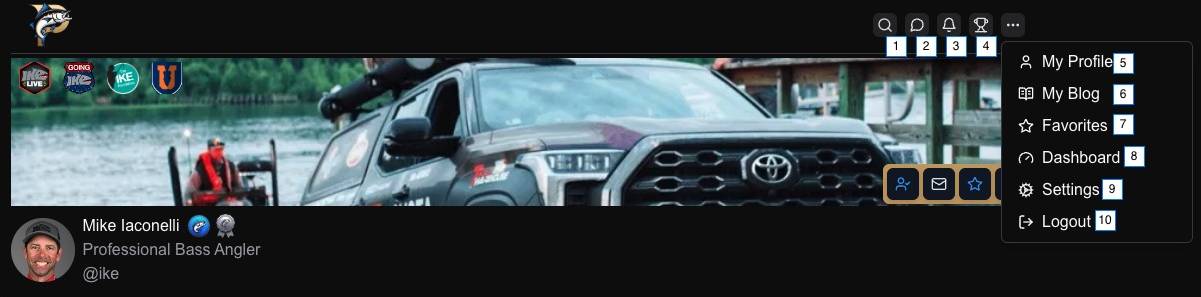
Main Website Navigation Header
1. Search
2. My Messages
3. My Notifications
4. Global Leaderboard
5. My Profile
6. My Blog
7. My Favorites
8. My Dashboard
9. My Settings
10. Log out
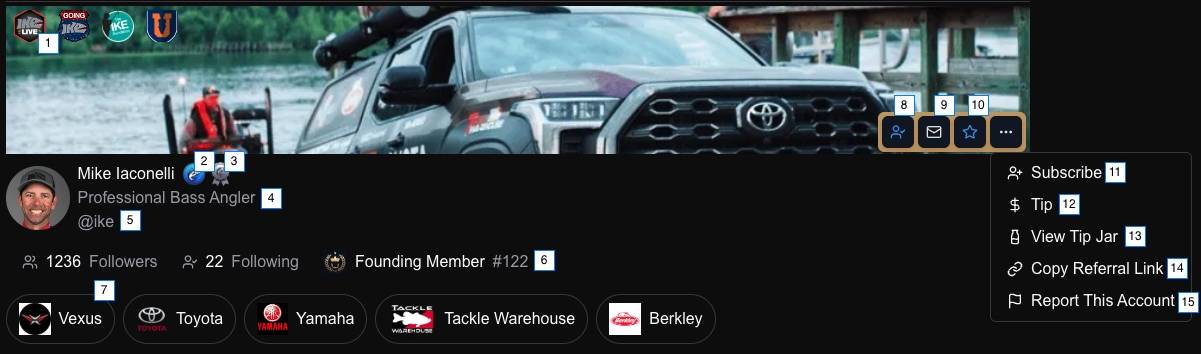
Your Profile Header
1. Sponsor or Interest Logos - Max 4. Link internally for angler points or externally with referral link.
2. "Verified Pro" Badge - Automatic with a pro account.
3. "Certified Pro Angler" Badge - Species specific when you compete in a "major".
4. ProAngler title - set in settings
5. ProAngler handle (unique) - set in settings
6. Founding Member - First 5000 "Pro" accounts - qualify for special rewards not generally available.
7. Sponsor Logos - Max 5. Connect to another ProAngler profile and earn angler points.
8. Follow this Angler
9. Message this Angler (must have a pro account)
10. Add Angler to your favorites
11. Subscribe to this Angler (COMING SOON)
12. Tip this Angler (COMING SOON)
13. Angler Tip Jar (COMING SOON)
14. Copy Angler's referral link. Earn angler points when used in your profile.
15. Report an account that is violating our TOS or reserved a handle that is your Copyright or Trademark.
hint: See bottom of this page for tools we recommend. They make editing easier.
A Simple Profile
Let's edit your settings first (settings control all the items mentioned above).
1. Go to settings -> Click on the "My Settings" link in the nav menu.
2. Settings / Account -> Add a Banner
3. Settings / Account -> Add a Avatar
4. Settings / Account -> Update First and Last Name (doesn't need to be real but is displayed publicly)
5. Settings / Account -> Update Title (displayed publicly)
6. Settings / Account -> Update Bio (displayed publicly)
7. Settings / Header Logos -> Add up to 4 logos (see profile header #1 above)
8. Settings / Sponsor Tags -> Add up to 5 sponsor tags (see profile header #7 above)
- note: Internal links only. Link to an actual sponsor or just a brand you admire.
9. Settings / Social Accounts -> Link to your social media accounts
10. Settings / Tag Manager -> Add up to 5 tags (these tags help anglers find you)
Now.. check your work. Open your profile and make sure your header looks right.
Editing Plugins
Let's edit your first plugin.
1. In settings, click Settings / Plugin Settings
2. Deactivate all plugins using the toggle to the right of each plugin.
3. Activate the "Youtube Videos" plugin and assign it the #1 spot.
4. Click on the plugin title. This will open the plugin editor.
5. Add a Section Title.
6. Add your YouTube Channel ID (follow instructions) and test connection.
- note: Your videos should be in preview window now. Videos will update automatically as you create them.
7. Leave "Number of Videos" at 3.
8. Set "View All URL" to the url of your youtube profile (https://youtube.com/@you).
9. Click "Publish" in the top right.
Now.. check your work. Open your profile and make sure your videos are displaying correctly.
10. Open the "Youtube Videos" plugin editor again.
11. In top left, toggle the "Styled Container" on.
12. At the top of the editor (above videos), you will see an Image Manager. Upload a banner image for your videos.
14. Copy the url for the image you just uploaded.
15. Scroll down to the "Hero Image URL" and paste the Image URL you just copied.
16. Publish your changes.
Now.. check your work. Open your profile and make sure your videos, with their new styled container, are displaying correctly.
That's it! You have a working profile that has it's first fully functioning plugin. When you're ready, dig into our guides for make your profile amazing.
Recommended Tools
1. Image Editor (freemium) - photopea.com
2. AI Image Generator (freemium) - https://grok.com/imagine
3. Text Editor (freemium) - Grok with Imagine or ChatGPT
4. AI Agent Integration with a PA Business Account
5. https://ytlarge.com/channel-id-finder